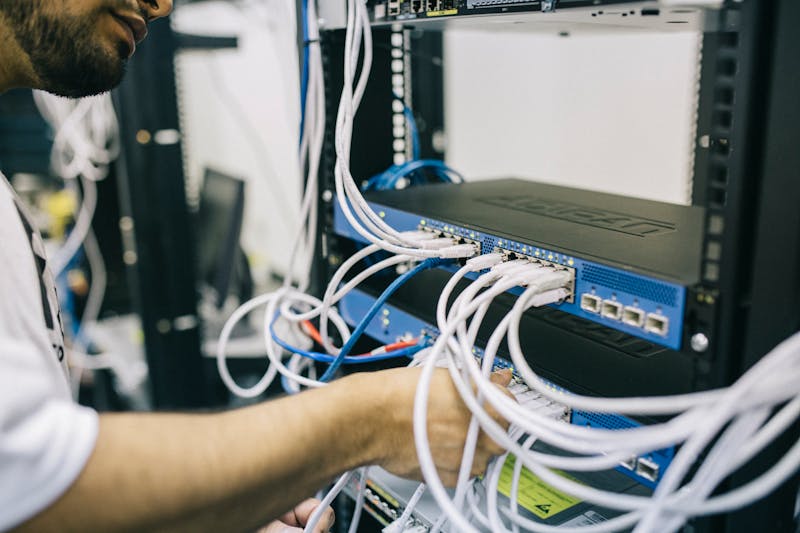
Why Cable Clutter Destroys Your Gaming Experience
You spent months perfecting your gaming setup — the perfect monitor, RGB keyboard, and ambient lighting — only to have it all ruined by a spaghetti mess of cables. Cable clutter doesn't just look terrible; it collects dust, makes cleaning impossible, and turns any equipment upgrade into a 30-minute archaeological dig.
The good news? You can eliminate 90% of your cable clutter in under 2 hours using the 7 methods below. No expensive equipment needed — just smart routing, simple bundling, and strategic hiding.
The Cable Clutter Reduction Strategy
Before You Start: The Cable Audit
Before touching a single cable, document what you have:
- Unplug everything — yes, everything
- Group cables by type: power, data, peripherals, lighting
- Measure cable lengths — note which are too long
- Identify permanent vs. temporary connections
- Take photos for reference during rebuild
This 15-minute audit prevents the "where did this cable go?" confusion later.
Method 1: Strategic Under-Desk Organization
Goal: Hide the bulk of your cables where no one can see them.
The Under-Desk Tray Technique

Install a cable management tray underneath your desk to contain your power strip and excess cable length.
Best option: EVEO Under Desk Cable Tray ($20)
- Holds power strips, adapters, and cable coils
- Steel mesh allows heat dissipation
- Mounts with 4 screws in 10 minutes
Installation:
- Mount tray centered under desk, 2 inches from back edge
- Place power strip inside tray
- Coil excess cable length in tray
- Route device cables up from tray to desktop
Result: Instantly removes 70% of visible cable bulk
Alternative: Adhesive Cable Basket
For renters or non-permanent setups:

Command Strip Cable Organizer ($15)
- No drilling required
- Removable adhesive
- Holds up to 2 lbs
Pros: Renter-friendly, removable Cons: Lower weight capacity, may fail on textured surfaces
Method 2: Smart Cable Bundling
Goal: Turn 8 visible cables into 2 clean bundles.
Velcro Ties vs. Zip Ties: The Winner
Always choose velcro. Here's why:
| Velcro Ties | Zip Ties |
|---|---|
| ✅ Reusable | ❌ One-time use |
| ✅ Adjustable tension | ❌ Fixed tightness |
| ✅ Easy cable additions | ❌ Must cut to modify |
| ✅ No sharp edges | ❌ Can cut fingers |
| ✅ Gentle on cables | ❌ Can damage cable sheathing |

Recommended: VELCRO Brand Cable Ties - 50 Pack ($8)
- 50 reusable ties in multiple sizes
- Color-coded for different cable groups
- Won't damage cable insulation
Bundling Strategy:
- Power cables → Red velcro ties
- Data cables (USB, HDMI) → Blue velcro ties
- Audio cables → Green velcro ties
- Network cables → Yellow velcro ties
Bundle Size Guidelines
- 2-3 cables: Use 6" velcro ties
- 4-6 cables: Use 8" velcro ties
- 7+ cables: Use neoprene cable sleeves instead
Method 3: Desktop Cable Routing
Goal: Guide cables along clean paths to eliminate desktop spaghetti.
Adhesive Cable Clips

Adhesive Cable Clips - 60 Pack ($10)
Strategic placement:
- Desk edges — route cables along perimeter
- Monitor stand — guide cables behind stand
- Desk legs — run cables down leg channels
- Wall corners — hide vertical runs
Pro tip: Clean surface with rubbing alcohol before applying clips for maximum adhesion.
Cable Routing Rules
Follow the "Hidden Highway" principle:
- Horizontal runs → Along desk edges, never across open surfaces
- Vertical runs → Down desk legs or wall corners
- Device connections → Straight from device to nearest edge
- Slack management → Coil excess length in hidden areas
Method 4: Wall Cable Concealment
Goal: Hide the desktop-to-wall power cable run.
Paintable Cable Raceways

Stageek Cable Raceway Kit ($15)
- 6 channels (15.4" each) = 92" total
- Adhesive backing, no drilling
- Paintable to match wall color
- Corner connectors included
Installation:
- Plan your route from desk to outlet
- Clean wall surface thoroughly
- Apply channels in straight runs
- Paint channels to match wall (optional)
- Snap cables into channels and close covers
Result: Completely invisible wall cable runs
Alternative: Cord Covers for Baseboards
For rental properties: D-Line Cord Cover ($12)
- Runs along baseboards
- Semi-permanent adhesive
- White/beige color options
Method 5: Cable Length Optimization
Goal: Eliminate excess cable length that creates visual bulk.
Right-Sizing Your Cables
Common cable length problems:
| Device | Standard Length | Optimal Length | Solution |
|---|---|---|---|
| Monitor cable | 6 feet | 3-4 feet | Shorter HDMI/DP cable |
| Keyboard cable | 6 feet | 3 feet | Coiled USB-C cable |
| Mouse cable | 6 feet | 4 feet | Custom length or wireless |
| Power cables | 6 feet | 3-4 feet | Right-angle power strips |

Recommended short cables:
- 3ft HDMI Cable 4K ($6)
- 3ft USB-C to USB-A ($8)
- 4ft DisplayPort Cable ($9)
Cable coiling technique:
- Over-under method prevents kinking
- Secure with velcro tie, not twist ties
- Leave service loops for future adjustments
Method 6: Power Cable Consolidation
Goal: Reduce the number of cables going to your wall outlet.
Right-Angle Power Strips

Flat Plug Power Strip ($20)
- 8 outlets with flat plug design
- Fits behind furniture
- USB charging ports included
- 6ft cord vs. 12ft standard length
Why right-angle plugs matter:
- Fits closer to walls (saves 2-3 inches)
- Doesn't block second outlet
- Reduces cable management bulk
Smart Power Management
Add automated cable reduction with smart plugs:

Kasa Smart Plug 4-Pack ($25)
- Turn off non-essential devices when not gaming
- Eliminate phantom power draw
- Schedule automatic power cycling
Strategic placement:
- Speakers (auto-off after gaming)
- LED strips (scheduled ambient lighting)
- Charging stations (overnight schedules)
- Secondary monitors (auto sleep)
Method 7: Wireless Migration Strategy
Goal: Eliminate cables entirely where possible.
Priority Wireless Upgrades
Rank by clutter impact:
- Mouse → Immediate visual improvement
- Headset → Removes longest cable
- Keyboard → Major desktop cable reduction
- Charging cables → Wireless charging pads
- Speakers → Bluetooth connection

Wireless charging solution: Anker PowerWave Stand ($25)
- Charges phone, earbuds, and smartwatch
- Eliminates 3 charging cables
- LED status indicators
Cost-effective wireless upgrades:
- Gaming mouse: Logitech G305 ($40)
- Bluetooth headset: SteelSeries Arctis 7P ($90)
Quick Wins: 15-Minute Cable Clutter Fixes
If you only have 15 minutes:
The Desktop Sweep Method
- Bundle power cables with 2 velcro ties (5 minutes)
- Route along desk edge with 6 adhesive clips (5 minutes)
- Coil excess length behind monitor stand (3 minutes)
- Hide power strip under desk with mounting tape (2 minutes)
Result: 60% clutter reduction in 15 minutes
The Strategic Hiding Method
- Move power strip to floor behind desk leg
- Bundle all power cables with single large velcro tie
- Route bundle along wall to outlet
- Tape bundle to baseboard every 12 inches
Result: Eliminates most visible floor cables
Cable Management Maintenance
Weekly (5 minutes):
- Check for loose velcro ties
- Retighten cable clips
- Dust cable runs with microfiber cloth
Monthly (15 minutes):
- Reorganize cables after equipment changes
- Replace worn velcro ties
- Clean adhesive areas and re-stick clips
Equipment Upgrades:
- Plan cable routing before buying new devices
- Choose devices with detachable cables
- Prioritize wireless options when replacing equipment
Common Cable Clutter Mistakes to Avoid
❌ Don't do this:
- Using zip ties (permanent, damage cables)
- Running cables across open desktop surfaces
- Mixing power and data cables in same bundle
- Ignoring cable length optimization
- Installing cable management after setup is complete
✅ Do this instead:
- Plan cable management during initial setup
- Use velcro ties for all cable bundling
- Route cables along hidden edges and paths
- Group similar cable types together
- Buy appropriate cable lengths for your setup
Advanced Techniques for Complex Setups
Multi-Monitor Cable Management
Challenge: 2-3 monitors create cable multiplication
Solution:
- Use monitor arms with built-in cable management
- Route all monitor cables together in single bundle
- Use short cables (3ft max) for desk-mounted monitors
- Consider USB-C monitors for single-cable connection
Streaming Setup Cable Reduction
Common streaming gear cables:
- Camera → USB cable
- Audio interface → XLR, USB, and power
- Stream deck → USB cable
- Ring light → Power cable
- Green screen → Power cable (if LED)
Optimization strategy:
- USB hub for all USB devices (single cable to PC)
- Power strip dedicated to streaming gear
- Boom arm routing for microphone cables
- Wall-mounted equipment where possible
Measuring Your Success
Before photos vs. after photos — the most motivating measurement
Objective metrics:
- Cable count visible from gaming position
- Time to disconnect/reconnect a device
- Dust accumulation in cable areas
- Family/friends comments on setup appearance
Target goals:
- ≤2 visible cables from primary gaming angle
- ≤30 seconds to swap any device
- Weekly dusting takes ≤5 minutes
- Setup impresses visitors
Frequently Asked Questions
Q: How much should I spend on cable management? A: $30-50 covers most gaming setups. Start with a cable tray ($20) and velcro ties ($8). Add raceways and clips as needed.
Q: What if I rent and can't drill holes? A: Use adhesive solutions: Command strips, adhesive cable clips, and raceway systems. Avoid permanent mounting solutions.
Q: Should I hide all cables or just the messy ones? A: Focus on high-visibility cables first: desktop surface cables, long power runs, and cables that cross walking paths. Hidden cables (behind desk) are lower priority.
Q: How often do I need to redo cable management? A: Major reorganization every 6-12 months, or when adding significant new equipment. Minor adjustments monthly.
Q: Is wireless always better than cable management? A: Not always. Wireless adds cost, charging requirements, and potential latency. Good cable management often beats wireless for stationary devices.
Your Cable Clutter Action Plan
Week 1: Assessment & Quick Wins
- Document current cable situation
- Implement desktop sweep method
- Order basic supplies (cable tray, velcro ties)
Week 2: Major Organization
- Install under-desk cable tray
- Bundle and route all cables systematically
- Install wall raceways for permanent runs
Week 3: Optimization
- Replace cables with optimal lengths
- Add wireless upgrades where beneficial
- Install adhesive clips and final routing
Week 4: Polish & Maintenance
- Final adjustments and hidden slack management
- Establish maintenance routine
- Document setup for future reference
Result: A gaming setup that looks as good as it performs, with cables so well-managed that visitors ask how you made them "disappear."
Transform your cable chaos into a clean, professional-looking gaming battlestation. Your future self will thank you every time you sit down to game.